
MQTT is frequently a core component of Unified Namespace (UNS) architectures in industrial automation. When implementing and operating MQTT-based systems, message flow transparency is essential. Engineers need to understand which data flows through which topics and how payloads are structured. Without a proper monitoring tool, troubleshooting in an MQTT network is like working blind. A structured MQTT Explorer setup provides the solution: MQTT Explorer offers a graphical interface that visualizes MQTT messages in real-time. This article demonstrates step-by-step how to install, configure, and deploy MQTT Explorer for debugging industrial MQTT implementations.
What is MQTT Explorer?
MQTT Explorer is an open-source desktop tool for visualizing MQTT messages and interacting with MQTT brokers. Designed for developers and engineers who implement, debug, or monitor MQTT-based systems, it combines user-friendliness with technical depth.
Core Capabilities
MQTT Explorer provides the following key features:
- Broker Connectivity: Connect to local and remote MQTT brokers (MQTT 3.1.1 and MQTT 5.0)
- Topic Hierarchy: Hierarchical representation of topic structure as an expandable tree view
- Real-time Monitoring: Visualization of incoming messages in real-time
- Payload Inspection: Support for JSON, plaintext, and binary formats
- Publishing: Publish test messages for integration testing
- Message History: Historical message tracking per topic with timestamps
Comparison with Alternative Tools
The following table positions MQTT Explorer within the context of alternative monitoring tools:
| Feature | MQTT Explorer | MQTT.fx | mosquitto_sub (CLI) |
|---|---|---|---|
| Graphical Interface | Yes | Yes | No |
| Topic Hierarchy Visualization | Yes | Limited | No |
| Cross-Platform | Windows, macOS, Linux | Windows, macOS, Linux | Windows, macOS, Linux |
| License | Open Source (MIT) | Freeware/Commercial | Open Source |
| Payload Inspection | JSON, Text, Hex | Yes | Text only |
| Best For | Development & Debugging | Development & Testing | Automation & Scripting |
MQTT Explorer is particularly well-suited for initial system exploration and troubleshooting during development phases. For a detailed comparison of MQTT clients, see this resource.
Installing MQTT Explorer
The following sections describe MQTT Explorer installation for Windows, macOS, and Linux.
Prerequisites
- System Requirements
- Operating System: Windows 7+, macOS 10.12+, Linux (Ubuntu, Debian, Fedora)
- RAM: Minimum 2 GB
- Network Access: Connection to MQTT broker (local or remote)
- Required Knowledge
- Basic understanding of MQTT (Publisher, Subscriber, Topics, Broker)
- Network configuration (IP addresses, ports)
- Optional: Authentication credentials for MQTT broker (Username/Password or TLS certificates)
Windows Installation
- Navigate to the official release page:
https://github.com/thomasnordquist/MQTT-Explorer/releases - Download the latest
.exefile (e.g.,MQTT-Explorer-Setup-0.4.0-beta.exe) - Run the installation file and follow the setup wizard
- After installation, launch MQTT Explorer from the Start menu
Notes:
- No additional dependencies required
- Installation size: approximately 150 MB
- Automatic update notifications available
macOS Installation
- Download the
.dmgfile from the release page - Open the
.dmgfile - Drag MQTT Explorer to the Applications folder
- Launch the application from the Applications folder
- If prompted, confirm the security dialog for unsigned developer
macOS Security Note: If you encounter a security warning, navigate to System Preferences → Security → “Open Anyway”
Linux Installation for Ubuntu/Debian (AppImage)
- Download the .AppImage file:
wget https://github.com/thomasnordquist/MQTT-Explorer/releases/download/0.4.0-beta/MQTT-Explorer-0.4.0-beta.AppImage - Make it executable:
chmod +x MQTT-Explorer-0.4.0-beta.AppImage - Launch:
./MQTT-Explorer-0.4.0-beta.AppImage
Connecting to an MQTT Broker
Establishing the initial connection to an MQTT broker is the critical first step for using MQTT Explorer. The tool supports various authentication methods and connection types.
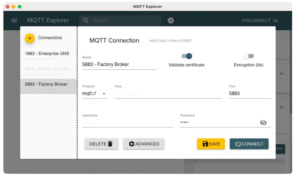
Basic Connection Configuration
Step-by-Step Guide:
- Open Connection Dialog: On first launch, the connection dialog opens automatically. Later, access it via “Connections” → “New Connection”
- Assign Connection Name: Choose a descriptive name (e.g., “Local Test Broker” or “Production-UNS-Plant01”)
- Configure Broker Address:
- Protocol:
mqtt://(default) ormqtts://(TLS) - Host: IP address or hostname of the broker (e.g.,
192.168.1.100ormqtt.example.com) - Port: Default is 1883 (unencrypted) or 8883 (TLS)
- Protocol:
- Client ID (optional): Leave blank for automatic generation, or specify a custom ID for persistent sessions
Configuration Example:
- Name:
Production-Broker Plant 01 - Protocol:
mqtt:// - Host:
10.50.10.100 - Port:
1883 - Client ID:
mqtt-explorer-monitoring
Configuring Authentication
- Username/Password Authentication
- Enable “Enable authentication”
- Enter username and password
- Save the connection
- TLS/SSL Connection: TLS encryption is recommended for production industrial environments:
- Select
mqtts://as protocol - Change port to 8883
- Under “Advanced” → “TLS/SSL Configuration”:
- CA Certificate: Upload broker’s root certificate
- Client Certificate (optional): Client certificate for mutual authentication
- Private Key (optional): Private key of the client certificate
- Select
Advanced Settings
- Auto connect: Automatic connection on startup
- Clean session: When disabled, subscriptions are stored persistently
- Keep alive interval: Heartbeat interval (default: 60 seconds)
- QoS for subscriptions: Quality of Service level (QoS 0, QoS 1, or QoS 2)
Testing the Connection
- Click “Connect”
- Successful connection is indicated by “Connected” status
- The topic hierarchy loads in the left panel
Monitoring and Visualizing MQTT Messages
After establishing a successful connection, MQTT Explorer provides multiple views for monitoring message flow.
The MQTT Explorer User Interface
MQTT Explorer is organized into three main areas:
1. Topic Tree (left panel):
- Hierarchical representation of all topics
- Color coding by activity (green = active, gray = inactive)
- Expandable/collapsible hierarchy levels
- Message count per topic
2. Message Detail Panel (right panel):
- Current payload of the selected topic
- Timestamp of the last message
- QoS level and Retain flag
- Message history with chronological sequence
3. Statistics Panel (bottom):
- Total number of received messages
- Messages per second
- Number of active topics
Subscribing to and Filtering Topics
MQTT Explorer subscribes to # (all topics) by default. For focused monitoring, you can define specific topic filters:
- Click “Advanced” → “Subscribe to specific topics”
- Enter topic filters:
plant01/area01/#– All topics below plant01/area01+/temperature– Temperature topics at the second hierarchy levelplant01/area01/+/machine01/#– Specific machine, all sub-topics
Best Practice for Industrial Systems: Avoid # subscriptions on production brokers with high message volumes. Subscribe specifically to relevant topic areas to prevent performance issues.
Payload Inspection
MQTT Explorer automatically detects payload formats and displays them accordingly:
- JSON Payloads:
{"timestamp": "2025-01-15T14:23:00Z", "machine_id": "robot01", "temperature": 87.3, "unit": "celsius", "status": "running"} - Plaintext Payloads:
87.3 - Binary Payloads:
- Hex representation
- ASCII side view
- Byte count
Using Message History
MQTT Explorer stores message history for each topic:
- Timestamp of each received message
- Traceable payload changes
- Ideal for debugging intermittent issues
- History size configurable (Advanced Settings)
Identifying Retained Messages
Messages with the retain flag set are specially marked:
- Retain symbol next to topic name
- Important for Unified Namespace (UNS) architectures: Retained messages provide the Last Known Good Value
Publishing and Testing Messages
- Select “Publish” in the upper area
- Enter the target topic:
plant01/area01/line01/testmachine/setpoint - Select QoS level (QoS 0, QoS 1, or QoS 2)
- Optional: Enable “Retain” for persistent messages
- Enter the payload:
{"target_temperature": 85.0, "unit": "celsius"} - Click “Publish”
Troubleshooting Common Issues
Issue 1: Connection to Broker Fails
Typical symptoms include error messages like “Connection refused” or “Timeout”. In MQTT Explorer, the status remains permanently at “Connecting…” without establishing a successful connection. Solutions:
- Verify Broker Reachability:
ping <broker-ip>ortelnet <broker-ip> 1883 - Check Firewall Rules:
- Port 1883 (TCP) for mqtt://
- Port 8883 (TCP) for mqtts://
- Windows: Windows Defender Firewall
- Linux: iptables or ufw
- Validate Broker Status:
sudo systemctl status mosquittoorsudo tail -f /var/log/mosquitto/mosquitto.log - Validate Credentials:
- Username/password correct?
- TLS certificates valid and not expired?
Issue 2: No Topics Displayed
The broker connection is established successfully, but the topic list remains empty. Additionally, the message “No messages received” may appear, even though data is expected. Solutions:
- Check Subscription Filter:
- Is
#configured as wildcard? - Check “Advanced” → “Topics to subscribe”
- Is
- ACL Permissions:
- Does the client have read permissions for the topics?
- Test with mosquitto_sub:
mosquitto_sub -h <broker-ip> -t '#' -u <user> -P <password> -v
- Publisher Active?:
- Are messages being published at all?
- Try publishing a test message manually
Issue 3: MQTT Explorer Responds Slowly or Freezes
The user interface becomes noticeably sluggish, CPU or RAM consumption increases significantly, and new messages are displayed with delay or appear with noticeable latency. Solutions:
- Limit Message History: Advanced Settings → “Max messages per topic”: 100 (instead of default 1000)
- Restrict Subscription:
- Do not subscribe to
#on high-volume brokers - Use specific topic filters:
plant01/#instead of#
- Do not subscribe to
- Restart with Focused Subscription:
- Disconnect
- Reduce subscription to relevant area
- Reconnect
Issue 4: Payload Not Displayed Correctly
JSON payloads are displayed only as plaintext, or binary data appears as unreadable character strings. The automatic formatting does not seem to work correctly. Solutions:
- JSON Validation:
- Is the payload valid JSON?
- Test with online validator (jsonlint.com)
- Check Encoding:
- UTF-8 encoding required for text payloads
- For binary: Use hex view (right-click → “View as Hex”)
- Format Detection:
- MQTT has no Content-Type headers
- MQTT Explorer infers format based on payload structure
Issue 5: Retained Messages Not Displayed
Known retained messages do not appear in the topic tree after connection establishment, even though they were successfully published previously. Solutions:
- Clean Session Flag:
- Disable “Clean session” in Connection Settings
- Reconnect
- Broker Configuration:
- Check broker logs for persistence errors
- For mosquitto:
persistence truein mosquitto.conf
Conclusion
MQTT Explorer is an essential tool for anyone developing or operating MQTT-based systems. The graphical representation of topic hierarchies, real-time payload inspection, and the ability to publish test messages make it the Swiss Army knife for MQTT debugging. For production UNS implementations, combine MQTT Explorer with automated monitoring solutions and establish clear governance rules for publish permissions.